














Open the wheel from admin
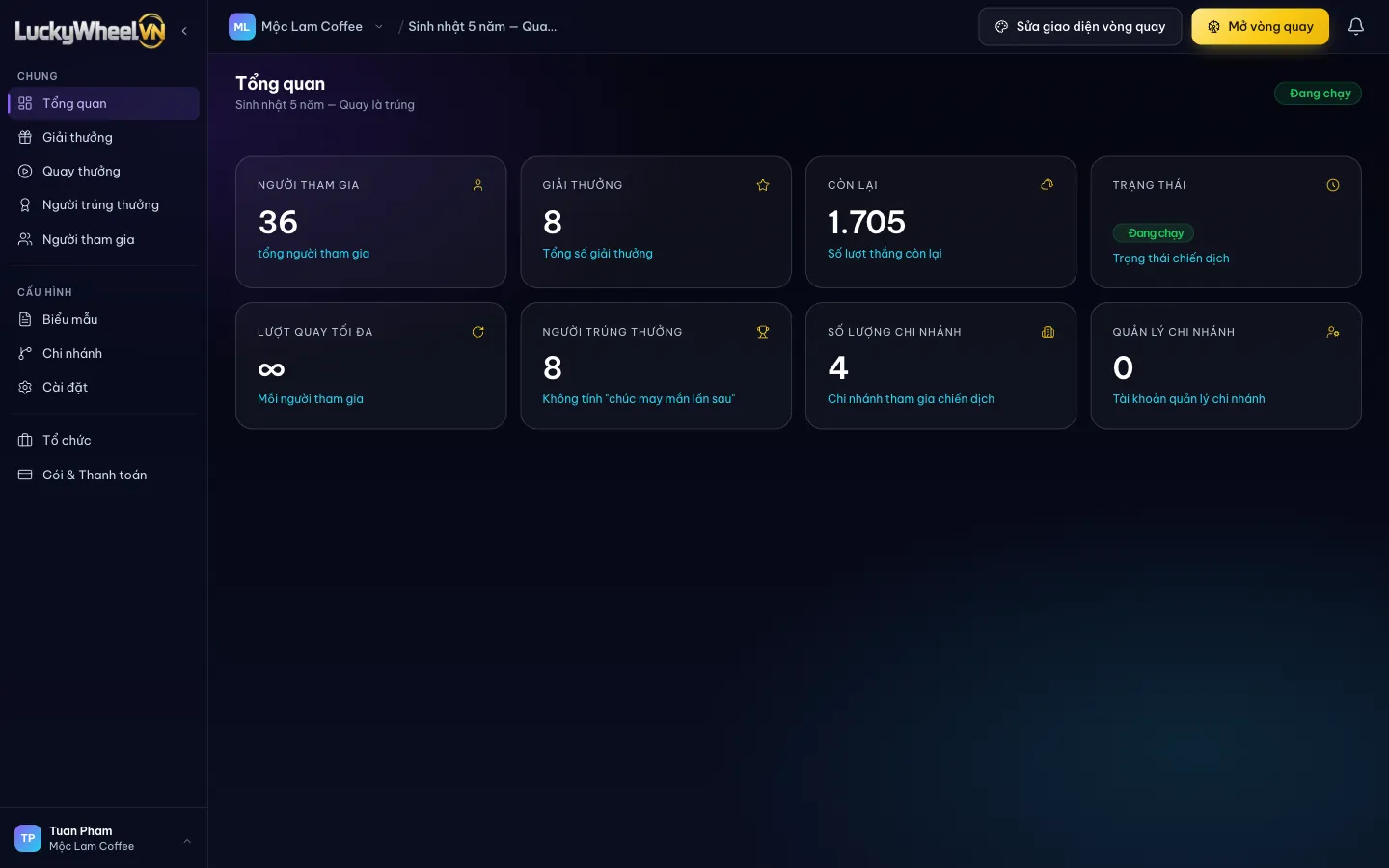
On any page of the campaign, click the yellow Open wheel button in the top bar. The public wheel page opens in a new tab.
- 1Open wheel: opens the page customers will use.
- 2Edit wheel design: change the logo, colors and text before opening it to customers.
- 3Draw: get the QR code, pause or end the campaign.
The wheel page customers see
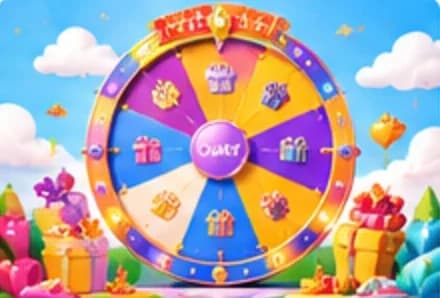
The page shows the logo, campaign name, dates, the wheel with prize images, and the rules. Customers tap Spin now to start.
- 1The trial notice only shows when the account has not upgraded.
- 2Spin now opens the registration form.
- 3Campaign rules and prize structure.
Customers fill in their details and spin
Customers fill in the fields you created on the Form fields page, then tap Start spinning. The wheel spins and stops on the prize the system picked.
- 1The form fields.
- 2Start spinning.
Customers get their result and claim code
The result screen shows the prize name, the customer's details and the Claim code. Customers tap Download result image to save it and show it to staff when collecting their gift.
The claim code matches the Claim code column on the Winners page, which staff use to hand out gifts.
On the customer's phone
Most customers scan the QR and spin on their phone. The page rearranges itself for a portrait screen: the wheel in the middle and the Spin now button just below it.
- 1Trial notice (only when not upgraded).
- 2Spin now.
Share the QR and manage the campaign
The Draw page has the campaign's QR code to print or show on a screen, the campaign status and a box to edit the rules.
- 1QR Code for the wheel page.
- 2Pause and End change the campaign status.
- 3Program Rules: one rule per line, then click Save rules.
Frequently asked questions
Should I do a test spin before opening to customers?
Yes, to check the design. Note that test spins are recorded like real ones; delete them on the Participants page before you go live.
Does each branch have its own QR?
Yes, get it on the Branches page. The campaign QR on the Draw page is shared by all locations.
Where do I edit the rules?
On the Draw page, in the Program Rules box: one rule per line, then click Save rules. Customers see them in the Campaign rules section on the wheel page, along with the prize structure.
Why does the page say "This campaign is in trial mode"?
An account that has not upgraded only records the first 10 participants. See the Upgrade your account guide to run a real campaign.