















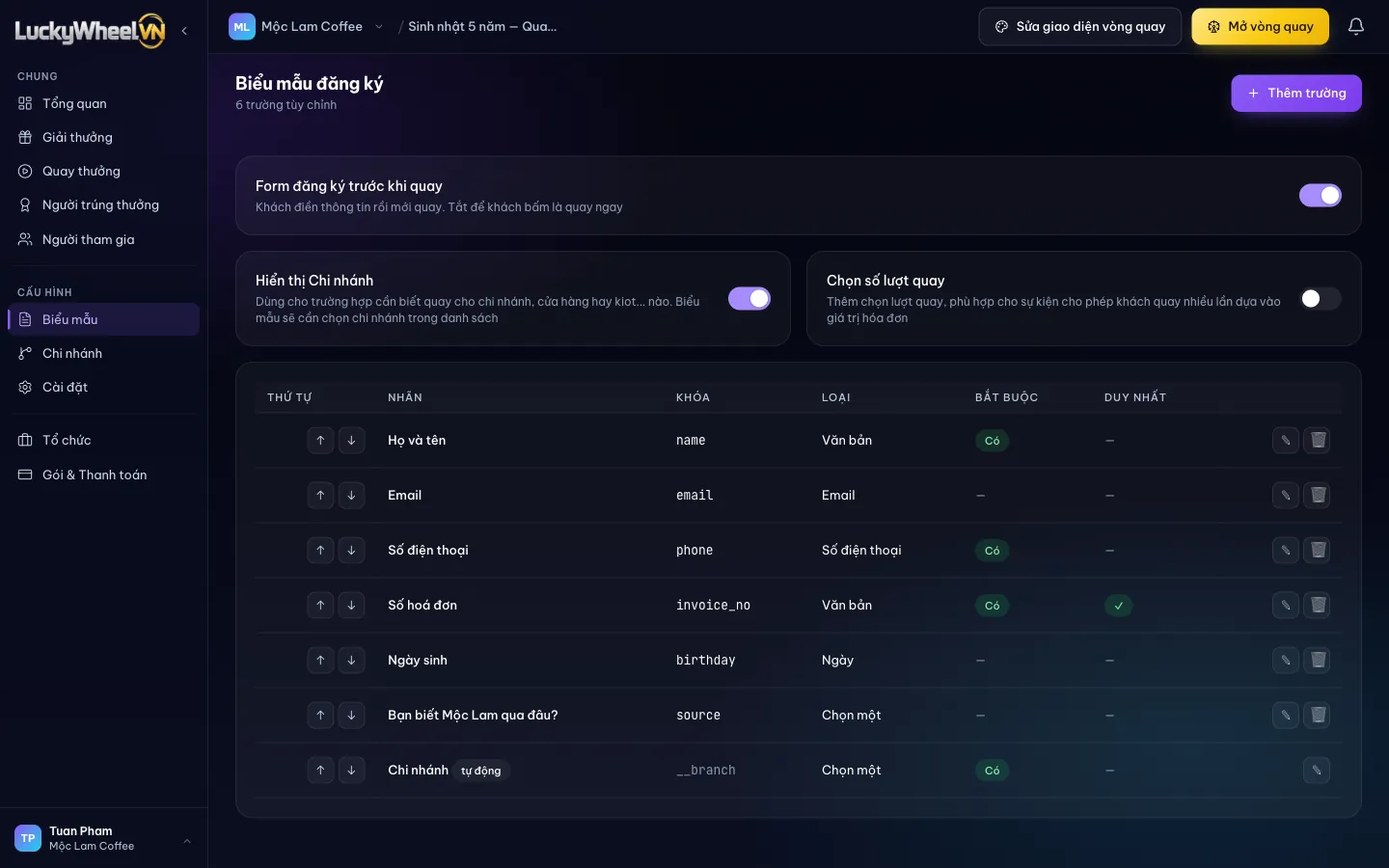
Open the Form fields page and set the options
Choose Form fields in the Configuration group. The three switches at the top decide whether customers must fill in their details and which parts the form has.
- 1The Form fields item in the Configuration group.
- 2Registration form before spinning: when off, customers spin as soon as they tap, and no name or phone number is saved.
- 3Show Branch Field: customers must pick a branch from a list. You need to create branches first.
- 4Spin count picker: customers choose 1–20 spins, useful when spins are based on the receipt amount.
- 5The form fields, ordered with the up/down arrow buttons.
- 6Add field to create a new question.
The form has no Name or Phone field by default. Add two fields with the keys name and phone so the participant list has both columns.
Add a field
Click Add field, set the label, key and field type, then click Save. The example below is a single-choice question: "Favorite drink".
- 1Field label: the question customers see.
- 2Field key is written without spaces or accents, for example favorite_drink. It cannot be changed after you save.
- 3Field type: Text, Number, Single choice, Multiple choice, Date, Phone number or Email.
- 4For choice types, enter one option per line as label=value.
- 5Required, Must be unique (stops a receipt number being used twice) and Conditional visibility.
- 6Save to add it to the form.
What customers see
When customers tap Spin now on the wheel page, the form opens in the order you set. Fields marked * are required.
- 1The form fields, with the branch at the top when Show Branch Field is on.
- 2Start spinning only works once all required fields are filled in.
Frequently asked questions
How do I allow only one spin per receipt?
Add a Receipt number field and tick Must be unique. A receipt number that was already used is rejected on the next sign-up.
Can I change a field key?
No. The key is tied to the data already collected, so you set it once when you create the field. You can change the label at any time.
If I turn the form off, do I still get a participant list?
When it is off, customers spin right away without leaving a name or phone number, so the list has no contact details.
Can a question show only when a customer picks a certain answer?
Yes. Tick Conditional visibility, then pick the condition field and the value it must match.