







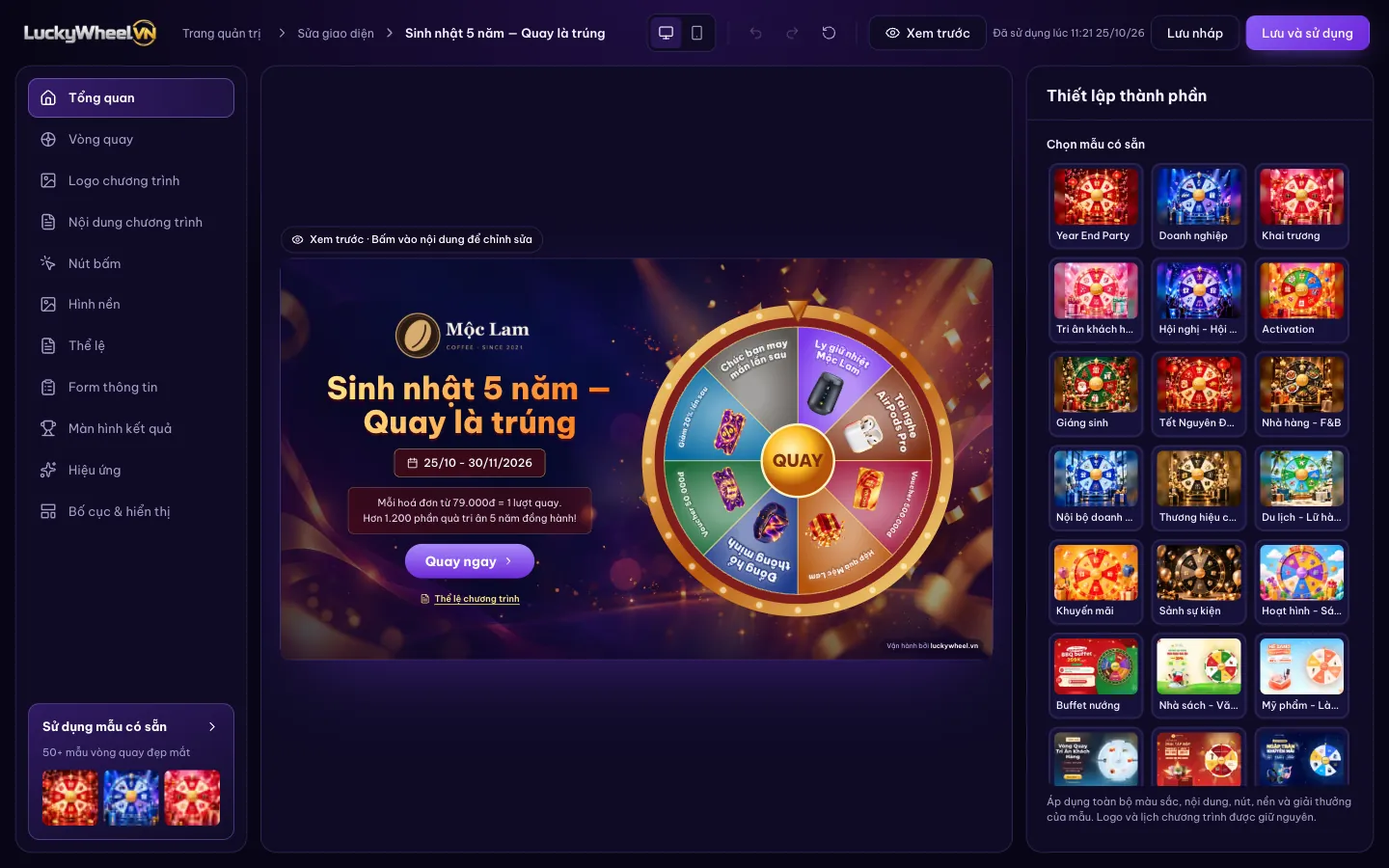
Open the design editor
In the campaign admin, click Edit wheel design in the top bar. The left side lists the sections, the middle is the preview (click text in the preview to edit it), and the right side holds the settings of the selected section.
- 1Sections: Wheel, Campaign logo, Campaign content, Button, Background, Rules, Info form, Result screen, Effects, Layout & visibility.
- 2Preview: click content to edit it. The desktop/phone icons in the top bar switch the preview frame.
- 3Choose a template: 20+ templates by occasion and industry.
- 4Save draft and Save and use.
Start from a template
In Overview, click a template (Year End Party, Lunar New Year, Restaurant - F&B, Milk tea - Drinks…) to apply its colours, content, button and background. Then fine-tune each section for your brand.
Applying a template does not change your real prizes, form fields, logo or campaign schedule. Picked the wrong one? Use the undo button in the top bar.
Customize the wheel
The Wheel section changes the wheel style, how it spins (Wheel spins or Center needle), how prizes appear on the slices, the center button, size and spin speed.
- 1Wheel style: pick a rim and slice colour set.
- 2Prize display on slices: curved text, small text (good for 10+ slices), image only, name only.
- 3Center button: circle, hexagon, star; optional logo in the middle.
- 4Wheel Size and Spin speed (Relaxed, Normal, Fast).
- 5Prizes: the campaign's real prize list.
Editing prizes in this section is saved immediately (no need to click Save) because these are the campaign's real prizes. Add prizes or change quantities on the Prizes page instead.
Change the logo
In Campaign logo, drag and drop or choose a PNG, JPG or WebP file (up to 5MB). A transparent-background logo works with any background.
- 1Upload and preview the logo; Remove logo to clear it.
- 2Logo Size.
- 3Alignment: left, centre, right.
Edit the title, description and dates
Campaign content controls the text on the spin page: title, description, date line and the join button text; each can be shown or hidden, with its own font, size and colour.
- 1Campaign title: text, font, size, colour, bold/italic.
- 2Description: one or two lines on how to join or what can be won.
- 3Campaign schedule: start and end dates; the wheel opens and closes automatically on this schedule.
Change the Spin button
The Button section changes the text, font, style, colour and icon of the button guests press to start.
- 1Button text, font and size.
- 2Button style: rounded, square, glow.
- 3Button color.
- 4Icon: none, arrow, gift.
Change the background
The Background section lets you pick a ready-made image, upload your own, or use a solid colour.
- 1Choose Image or Color.
- 2Upload background from your computer.
- 3Zoom the background image.
- 4Blur background so the text and wheel stand out.
Write the campaign rules
The Rules section manages the rules button, each rule and the automatic information. Guests tap Campaign rules on the spin page to read them.
- 1Rules button: show or hide, place it Below the join button or in the Top right corner.
- 2Rules: one rule per box, Add a rule to add more.
- 3Automatic information: campaign dates, prize list (from your prizes), support hotline.
Style the sign-up form
The Info form section edits the form title and submit button text. The fields (name, phone, invoice number…) come from the campaign's real form configuration.
- 1Toggle that shows the form in the preview.
- 2Info fields: the campaign's real form fields.
- 3Open field settings to add or edit fields and set required ones.
Whether guests must fill in a form before spinning is set on the Form fields page (the Registration form before spinning switch); the live spin page always follows that switch.
Design the result screen
The Result screen section shapes what guests see after spinning, for both Won a prize and Better luck next time.
- 1Switch between Won a prize and Better luck next time.
- 2Style: follow the wheel, dark or light; show or hide the prize image, player details and claim code; edit the title, message and button text.
- 3Result preview. Guests can download a 1080×1500 result image with the prize, their details and the claim code to show when collecting the gift.
Pick a celebration effect
The Effects section picks what plays when a guest wins: confetti, fireworks, glitter, apricot blossoms (Lunar New Year), snow (Christmas), balloons… Click an effect to preview it.
- 1Celebration effect; choose None to turn it off.
- 2Density: light, medium, vivid.
Arrange the layout for desktop and mobile
Layout & visibility is set separately for Desktop and Mobile: alignment, spacing, whether the wheel sits left or right, and the order and spacing of each block (logo, title, dates, countdown, description, button, rules).
- 1Pick Desktop or Mobile to adjust each screen separately.
- 2Spacing: compact, medium, airy, and the margin from the screen edge.
- 3Content block order: show/hide, move up/down and space each block.
Preview and save
Click Preview to try the page as guests see it. Save draft keeps your changes for later without showing them to guests. Save and use puts the new design on the live spin page.
- 1Preview.
- 2Save status, e.g. Used at… or unsaved changes.
- 3Save draft: not applied to guests yet.
- 4Save and use: applied to the spin page right away.
After Save and use, click Open wheel in the admin to check the page on both desktop and phone before printing the QR code.
Frequently asked questions
Does changing the design affect participant data?
No. The design only changes how things look; participants, winners and prizes stay the same.
I saved, but guests still see the old design?
Make sure you clicked Save and use — Save draft is not applied to guests. Then reload the spin page.
Can I get a fully branded design?
You can change the logo, colours, text, background and effects yourself. If you want the Lucky Wheel VN team to design a custom wheel or landing page for your brand, see the design add-ons on the Pricing page.
Why does the form switch in the design editor not change the live page?
Whether guests must fill in a form is decided by the Registration form before spinning switch on the Form fields page; the design editor only styles how the form looks.