






Open the Prizes page
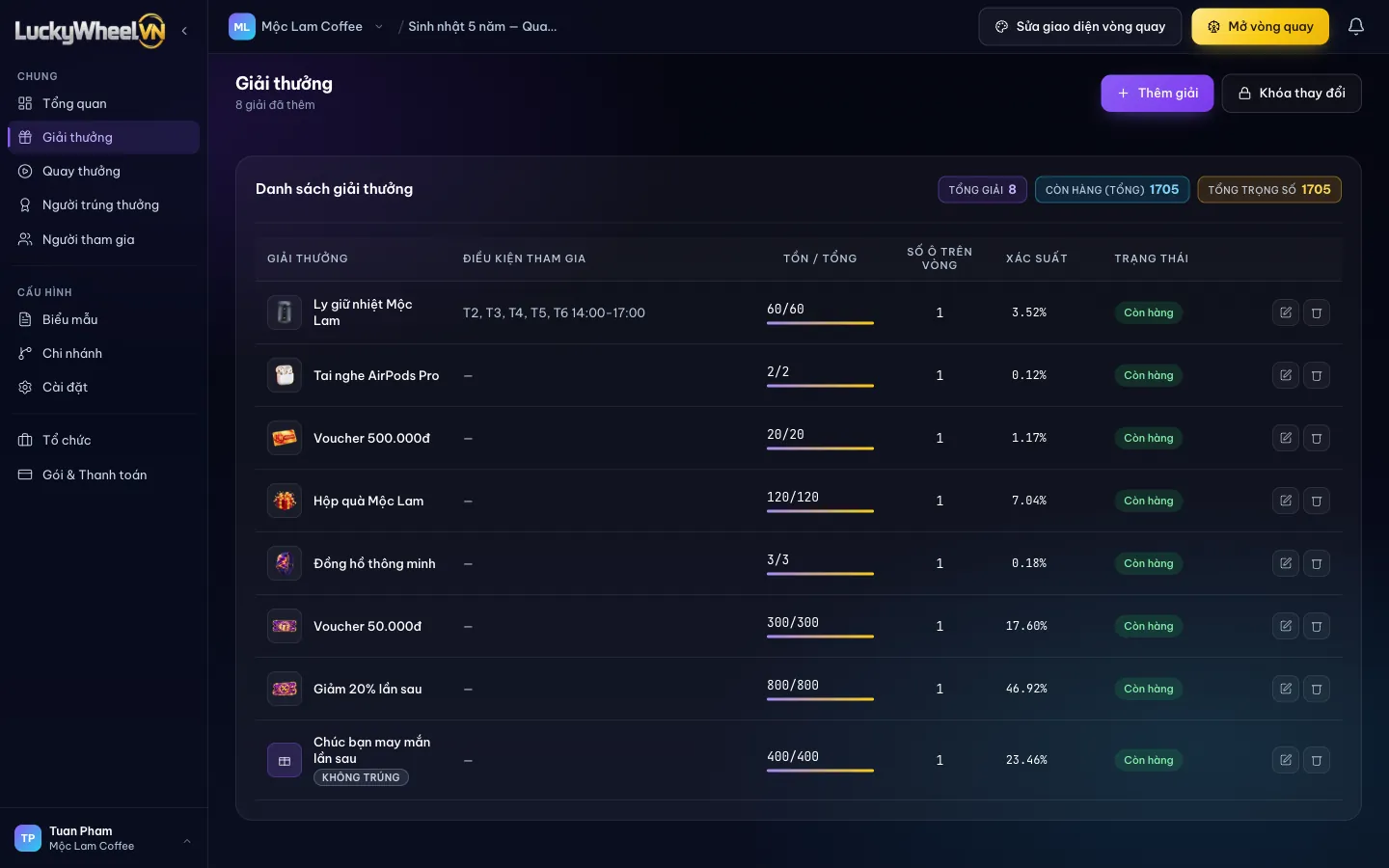
In your campaign, choose Prizes in the left sidebar. The table lists every prize with its remaining quantity, conditions and current chance of winning.
- 1The Prizes item in the General group.
- 2Add Prize to create a new prize.
- 3The Entry conditions column shows which prizes can only be won in certain hours or by a certain group of customers.
- 4Probability is calculated automatically from each prize's remaining quantity.
- 5Lock changes once the campaign is live so nobody edits by mistake.
Add a new prize
Click Add Prize, enter a name and quantity, then click Save Prize. The prize appears on the wheel right after you save.
- 1Prize Name shows on the wheel slot and on the result screen.
- 2Tick "No win" prize for a "Better luck next time" slot: customers who land on it get no code or gift.
- 3Quantity is the number of real gifts you have. Slots on Wheel (1–6) only changes how many slots are shown, not the chance of winning.
- 4+ Add a condition: only customers with a matching answer in the form can win this prize.
- 5Choose an image for the prize (see the next step).
- 6Save Prize to add it to your stock.
The chance of winning is proportional to the remaining quantity: a prize with 800 units is easier to win than one with 2. To make a prize rarer, lower its quantity instead of looking for a percentage field.
Choose a prize image
Click Choose image to open a library of about 30 common gift images, or Upload image to use your own product photo (JPG, PNG, WebP, GIF).
- 1Upload image from your device.
- 2Click a ready-made image to use it right away.
Limit the hours a prize can be won
For a saved prize, click Edit, choose + Add, then Winning time window. Example: the Mộc Lam tumbler can only be won from 14:00 to 17:00, Monday to Friday, to bring customers in during quiet hours.
- 1From and To times in the day.
- 2Apply By day of week or By date range.
- 3Choose the days it applies; leave empty for every day.
- 4Add time window, then click Save Prize.
The Winning time window option only appears when you edit a saved prize, not when you create a new one. Outside the window, customers still spin as usual but cannot win this prize.
Lock changes once the campaign is live
Click Lock changes and confirm. From then on nobody can add, edit, delete or reorder prizes. To unlock, you need the 6-digit code from your authenticator app or a code sent by email.
- 1The confirm dialog shown before locking.
Frequently asked questions
Can I set the winning chance as a percentage?
There is no percentage field. The chance is calculated from the remaining quantity of each prize, so you adjust it by raising or lowering quantities.
What happens when a prize runs out?
A prize with no quantity left switches to Out of Stock and nobody can win it anymore. Prizes still in stock keep spinning as usual.
Should I add a "Better luck next time" slot?
Yes, if you don't want every customer to get a gift. Add a prize, tick "No win" prize and set a quantity: the higher it is, the more spins end without a win.
Can I delete a prize someone has already won?
Best to avoid it. If you need to swap the gift for someone who already won, use Edit prize on the Winners page; stock for both prizes is recalculated automatically.