















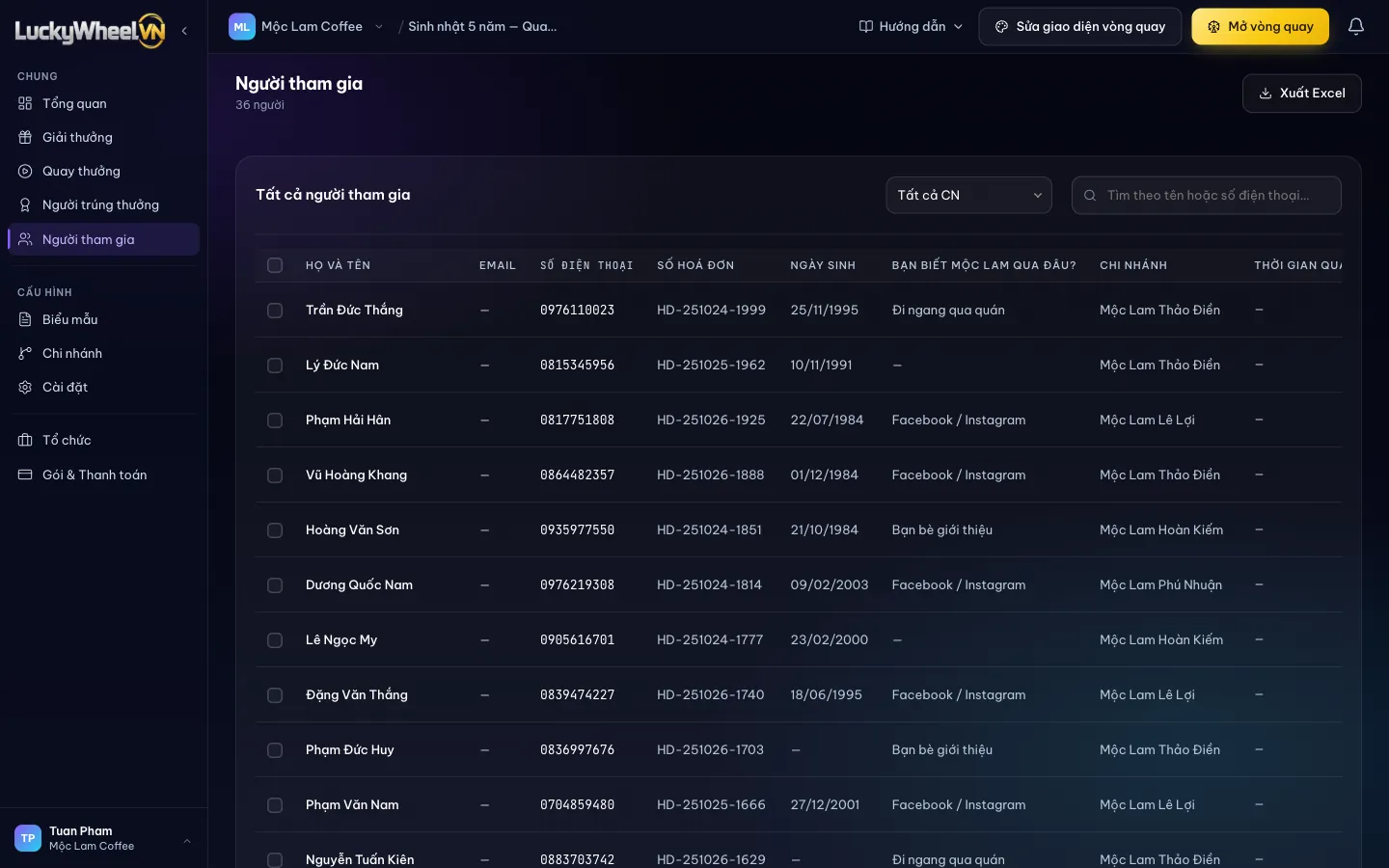
Open the Participants page
Choose Participants in the left sidebar. If the table is wider than your screen, scroll sideways to see the Spin time, Prize and Status columns.
- 1The Participants menu item.
- 2Export Excel with the current filters.
- 3Filter by branch.
- 4Search by name or phone number.
Every guest who fills in the form and spins becomes one row. To collect more details (invoice number, how they heard about you…), add a field on the Form fields page and a matching column appears here.
Export the list to Excel
Pick a branch or type a search term if you only need part of the list, then click Export Excel. The file has every form column plus branch, spin time, prize won and status. Use it for follow-up after the campaign or to reconcile with each store.
Frequently asked questions
When does a guest appear in the list?
As soon as they fill in the form and spin on the wheel page. You do not need to add anyone beforehand.
What is in the Excel export?
Every visible column, using the branch filter and search term you have selected.
What do the statuses mean?
Won: the guest won a prize. Spun: the guest spun but did not win (for example a "Better luck next time" slot).
I already have a guest list. Can I import it?
Lucky Wheel VN is built for guests to sign up themselves by scanning a QR code, so the admin has no list import. If your programme needs to spin from an existing list, contact the Lucky Wheel VN team for advice.